
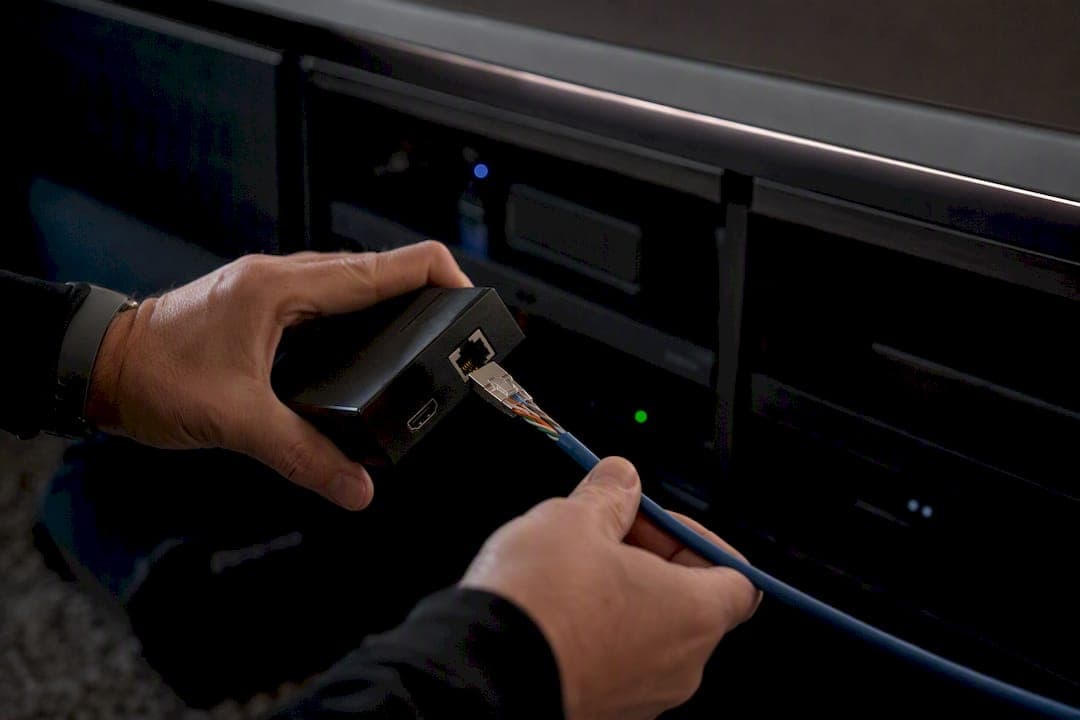
Yes, HDMI can be run over Cat6, and it works well when you use an active HDMI extender or an HDBaseT transmitter/receiver pair rather than a passive cable adapter. Many kits push 4K signals well past 100 feet, with some rated for runs up to around 230 feet on solid-core Cat6, and the main hardware requirement is a matched transmitter/receiver set, not just a spool of network cable.
Quickest path to a working setup:
- Buy a 4K@60-capable extender kit rated for your run length.
- Use solid-core Cat6 or Cat6A, not stranded patch cable, for the wall run.
- Hire a professional for concealed runs or multi-room jobs.
Key Takeaways
HDMI over Cat6 works reliably when paired with an active extender or HDBaseT device, solid-core cabling, and correct EDID/HDCP setup.
| Point | Details |
|---|---|
| Use active hardware | Passive HDMI-to-Cat6 adapters only work for very short runs; active extenders or HDBaseT handle real distances. |
| Match resolution to spec | Confirm the extender supports your exact resolution and refresh rate, especially for 4K@60 4:4:4. |
| Solid-core cable wins | Solid-core Cat6 or Cat6A as the permanent run outperforms stranded patch cable at range. |
| Test before sealing walls | Confirm EDID, HDCP handshake, and picture quality before closing up concealed runs. |
| Hire for concealed or multi-room jobs | Djcengineering provides site-surveyed structured cabling and HDMI extension installs across South East Queensland. |
Useful Manufacturer Resources
- IOGEAR GVE4K60KIT: distance specs and kit downloads.
- OREI UHD-IPC230-K-1: bandwidth and HDCP spec sheet.
- SIIG HDMI extender: loop-out and EDID feature details.
- StarTech HDMI over CAT6 extender: datasheet and installer downloads.
Table of Contents
- How Does HDMI Over Cat6 Actually Work?
- What Features Actually Matter When Buying an Extender?
- How Far Can You Run HDMI Over Cat6?
- Installing HDMI Over Cat6: A Site-Ready Checklist
- Passive Cable, HDMI-Over-IP, or Fiber: Which Fits Your Job?
- Why Is My HDMI Extender Not Working?
- Should You DIY or Hire a Professional Installer?
- What Installers Actually See Go Wrong on Site
- Getting the Right Setup Installed, Not Just Purchased
- Frequently Asked Questions
- Sources
How Does HDMI Over Cat6 Actually Work?
An HDMI over Cat6 extender converts the HDMI signal into a format that survives transmission over twisted-pair cabling, then reconverts it back to HDMI at the far end. The transmitter unit sits near the source (a media player, PC, or matrix switch), and the receiver sits near the display.
Three approaches dominate the market, and vendors aren't always consistent about naming them. Passive baluns use no chipset and rely purely on the cable to carry the signal; they only work over very short distances and struggle with 4K. Active HDMI-over-Cat6 extenders use dedicated transmitter/receiver chipsets to compress or encode video for reliable delivery, which is what most retail kits sold today actually are. HDBaseT is a standardized version of that same idea, built around a certified chipset that also handles Ethernet, control signals, and Power over Cable in one link. AV-over-IP is a different animal entirely, routing HDMI as network packets through a switch instead of a single point-to-point transmitter/receiver.
Bandwidth is the real constraint. 4K@60 4:4:4 needs up to 18Gbps, and HDCP 2.2 or 2.3 copy protection has to negotiate correctly between source and display for anything to appear on screen.
An IOGEAR 4K extender kit converts HDMI for transport over Cat6 and can push a 4K signal up to 230 feet to the first receiver, with 165 feet possible between cascaded receivers on solid-core cable.
The signal path is straightforward once you see it laid out:
- Source device (Blu-ray player, PC, media box) plugs into the transmitter.
- Transmitter encodes HDMI, PoC power, IR, and EDID data onto the Cat6 run.
- Cat6 cable carries that combined signal to the receiver.
- Receiver decodes everything and outputs standard HDMI to the display.
- Optional loop-out on the transmitter feeds a local monitor simultaneously.
What Features Actually Matter When Buying an Extender?
The single most important spec is whether the unit supports the resolution and refresh rate you actually need. If your source outputs 4K@60 4:4:4, a 4K@30-only extender will downscale or drop the signal entirely, regardless of how good the rest of the spec sheet looks.
Beyond resolution, a handful of features separate a reliable install from a frustrating one:
- PoC (Power over Cable): Extenders with PoC power the remote unit through the Cat6 run itself, so you don't need an outlet at both ends.
- IR passback: Lets you control a source device from the display room, essential for boardrooms and home theaters where the player sits in a rack elsewhere.
- EDID management: A toggle or learning function that prevents mismatched handshakes between source and display.
- HDMI loop-out: A second HDMI port on the transmitter for local monitoring during setup.
- HDCP version support: Check for HDCP 2.2 or 2.3 compatibility with your source devices.
- Audio extraction: Pulls a stereo or optical audio feed out separately, useful for adding a soundbar or zone amp.
Pro Tip: Favor extender families with both local loop-out and an EDID toggle. When something doesn't work, loop-out lets you confirm the source is fine before you start blaming the cable run.
Budget-wise, entry-level 1080p extenders start cheap, mid-range 4K@30 units with PoC and IR sit in the middle, and full 4K@60 18Gbps kits with HDCP 2.3 and audio extraction sit at the top of the retail range.
How Far Can You Run HDMI Over Cat6?
Distance depends heavily on resolution. As a rough guide: High resolution signals like 4K@60 4:4:4 typically have a maximum reliable run length in the range of 130 to 165 feet, with lower resolutions such as 4K@30 or 1080p supporting longer distances, sometimes approaching 230 feet.
J-Tech Digital's spec sheet lists 4K@30Hz up to roughly 132 feet and 1080p up to 230 feet over Cat6/7, which lines up with what most manufacturers publish. SIIG's 4K@60 extender is rated for up to 230 feet under specific conditions, showing how much variance exists between chipsets even at the same claimed resolution.
Cable quality changes these numbers more than most buyers expect. Cat6A generally outperforms Cat6, and both outperform Cat5e at longer distances or higher resolutions. Solid-core conductor matters just as much as category rating.
Manufacturer guidance consistently warns that stranded patch cable used as the main wall run, rather than solid-core Cat6 or Cat6A, will shorten your effective range and increase the odds of dropouts at the edge of the rated distance.
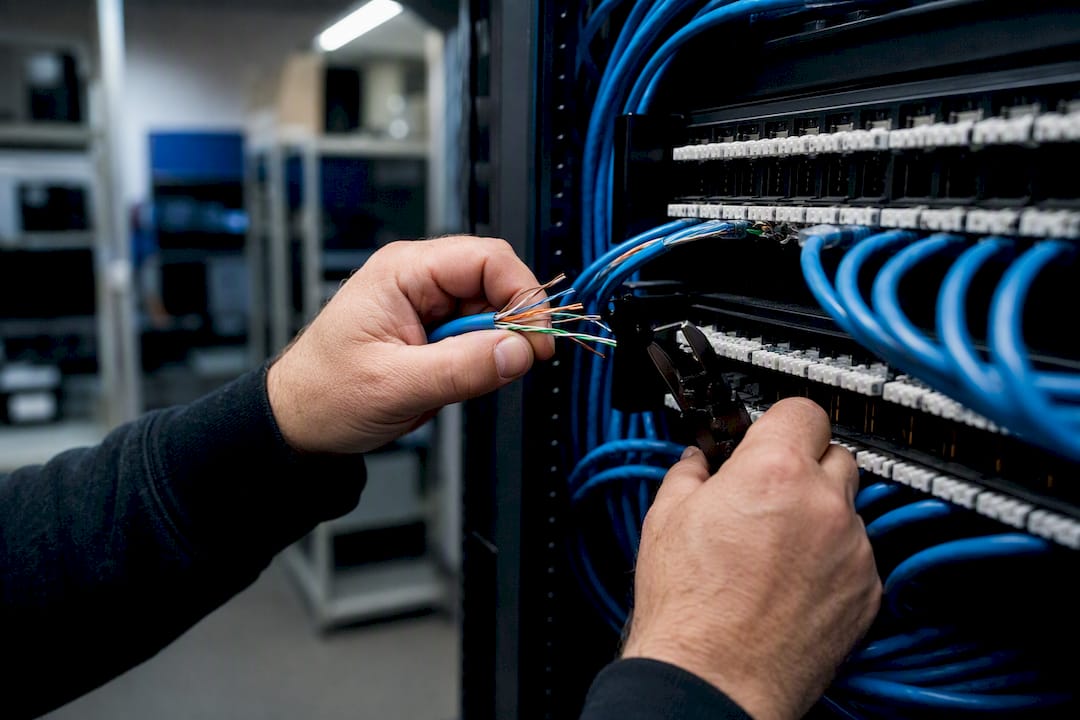
Poor RJ45 terminations and unnecessary patch panels in the middle of a run are the other usual suspects when a kit underperforms its spec sheet.
Installing HDMI Over Cat6: A Site-Ready Checklist
The single biggest rule: use solid-core Cat6 or Cat6A as your permanent in-wall run, and keep stranded patch cable limited to the short jumpers at each end. Mixing the two, or using patch cable for the long run because it's what's on hand, is the most common reason a "rated for 230 feet" kit fails at 80.
A clean installation follows roughly this sequence:
- Survey the site and confirm source and display locations.
- Choose Cat6 or Cat6A based on run length and resolution needs.
- Pull cable through walls or conduit, avoiding tight bends.
- Terminate both ends carefully with proper RJ45 connectors.
- Mount the transmitter near the source and receiver near the display.
- Power the units, using PoC where supported to simplify wiring.
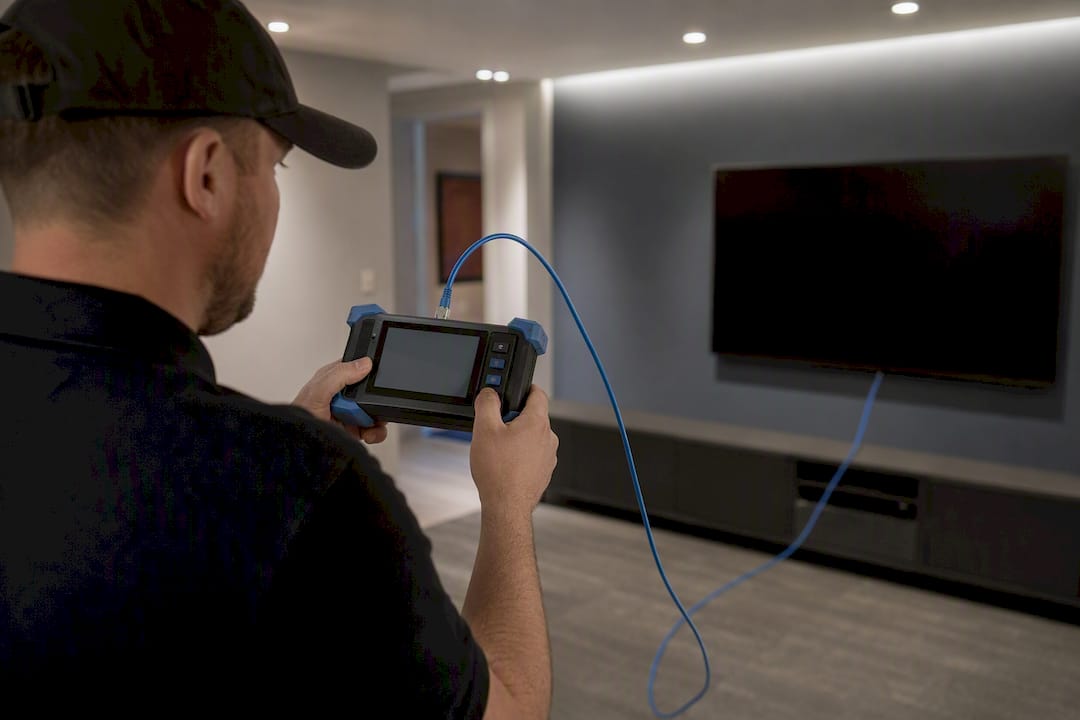
- Test with a known-good HDMI source and a cable tester before closing walls.
- Confirm EDID and HDCP handshake with the actual display that will be used long-term.
- Label both ends clearly for future service calls.
Keep conduit bends gentle, separate power and network cabling where local codes require it, and consider surge protection on runs that enter exterior walls or roof spaces.
Pro Tip: Test the full chain, including EDID and HDCP, before you seal up walls or drop ceiling tiles back in place. A five-minute test now saves a return trip later.
A straightforward single-room install often runs a few hours from unboxing to a confirmed picture. Concealed multi-room jobs, especially with cascaded receivers, more realistically span a full day or two once cable pulls, termination, and commissioning are factored in.
Passive Cable, HDMI-Over-IP, or Fiber: Which Fits Your Job?
Passive HDMI cabling only works for short runs, generally under 50 feet, before signal degradation becomes a problem. Active extenders or HDBaseT handle the vast majority of home and small commercial jobs beyond that. For very long runs or systems feeding many displays at once, fiber or full AV-over-IP infrastructure becomes the more sensible answer.
- Passive cable: Cheapest option, zero latency, but distance-limited and no extra features.
- Active Cat6 extender / HDBaseT: Moderate cost, minimal latency, handles most point-to-point runs up to a few hundred feet.
- AV-over-IP: Higher upfront cost and setup complexity, but scales to one-to-many distribution across a switch.
- Fiber: Best for extreme distances or electrically noisy environments, at a higher install cost.
Multi-display commercial signage, large venues, or campus-style buildings are the scenarios where hiring a pro for fiber or AV-over-IP genuinely pays off.
Why Is My HDMI Extender Not Working?
Most failures trace back to one of three causes: a handshake or HDCP mismatch, a cable or termination problem, or a power issue. Check these before assuming the unit is faulty.
- Confirm both units have power, and check PoC connections if used.
- Swap in a short, known-good HDMI cable at both the source and display ends.
- Check EDID settings, or try an EDID override/toggle if the extender has one.
- Test with a different display or source to isolate which device is the problem.
- Swap the Cat6 run for a known-good cable, or test it with a cable tester.
- Check for firmware updates from the manufacturer.
Pro Tip: Use the transmitter's local loop-out first. If the source displays fine there but not at the receiver, the problem is in the cable run or the receiver, not the source device.
If none of that resolves it, the next step is re-terminating the cable ends or calling in an installer to test with proper equipment.
Should You DIY or Hire a Professional Installer?
DIY makes sense for a short, exposed run, like connecting a single TV a few feet from a media console. Hire a professional when runs are concealed inside walls, you need multiple displays, the install is business-critical signage, or you need documented compliance for a commercial site.
Ask yourself these questions before deciding:
- Will the cable run be hidden inside walls or ceilings?
- Are you running one link or several across a building?
- Do you need structured cabling that will also support future network needs?
- Does the PoC or power setup complicate the install?
- Is there a hard deadline, or warranty and support requirements?
A professional installation typically includes a proper site survey, correctly specified solid-core cabling, clear labeling and documentation, EDID and HDCP tuning during commissioning, surge protection where needed, and a tested handover. Djcengineering's networking team handles exactly this kind of structured cabling work across South East Queensland, from single boardroom runs to full commercial fit-outs.
What Installers Actually See Go Wrong on Site
The surprises are rarely the extender itself. It's usually existing cabling that's the wrong category, EDID locked to a resolution the display doesn't support, or a power outlet that isn't where the plan says it should be.
If you hit a wall on-site, test the transmitter's local loop-out before you run a single foot of cable. It tells you in seconds whether the problem is upstream of the extender or somewhere in the run itself.
Getting the Right Setup Installed, Not Just Purchased
Buying the right extender kit solves half the problem. The other half is a cable run that's actually pulled, terminated, and tested to spec, which is where most DIY installs quietly underperform their rated distance.

That matters most on jobs with concealed runs, multiple displays, or PoC and IR requirements where a mistake means opening a wall twice. If your project involves more than one HDMI extension point, or ties into a broader network upgrade, it's worth having it scoped as structured cabling from the start rather than patched together room by room. Check out Djcengineering's networking services to get a proper site survey and a fixed-scope quote for your install.
Frequently Asked Questions
Can you really run HDMI over Cat6 cable for a 4K signal? Yes. With an active 4K-rated extender, Cat6 handles 4K@30 comfortably and 4K@60 over shorter runs, typically up to 130 to 165 feet depending on the chipset.
What's the difference between HDBaseT and a generic HDMI Cat6 extender? HDBaseT is a certified standard with a specific chipset supporting HDMI, Ethernet, PoC, and control signals together. Generic extenders use proprietary chipsets that may offer similar features at a lower cost, with more variance between brands.
Do I need Cat6A instead of Cat6 for a longer run? For runs pushing toward the upper end of a kit's rated distance, Cat6A generally delivers more consistent results than Cat6, particularly for 4K@60 signals.
Can a Cat6 HDMI splitter send video to multiple TVs? Yes, some extender kits support one-to-many distribution with cascaded receivers, though each additional receiver typically reduces the maximum supported distance.
Why does my picture keep dropping out over the Cat6 run? Check EDID and HDCP handshake first, then inspect terminations and cable type. Stranded patch cable used as a long wall run is a frequent cause of intermittent dropouts.
Sources
- Orei
Recommended
- Data Cabling Gold Coast: The 2026 High-Performance Installation Checklist | DJC Engineering
- Commercial Network Cabling Brisbane: The Engineered Backbone of Modern Business in 2026 | DJC Engineering
- Professional Audio Visual Installation: The Engineering Approach to Integrated Systems | DJC Engineering
- CCTV Installation Gold Coast: The Technical Checklist for High-Performance Security | DJC Engineering