
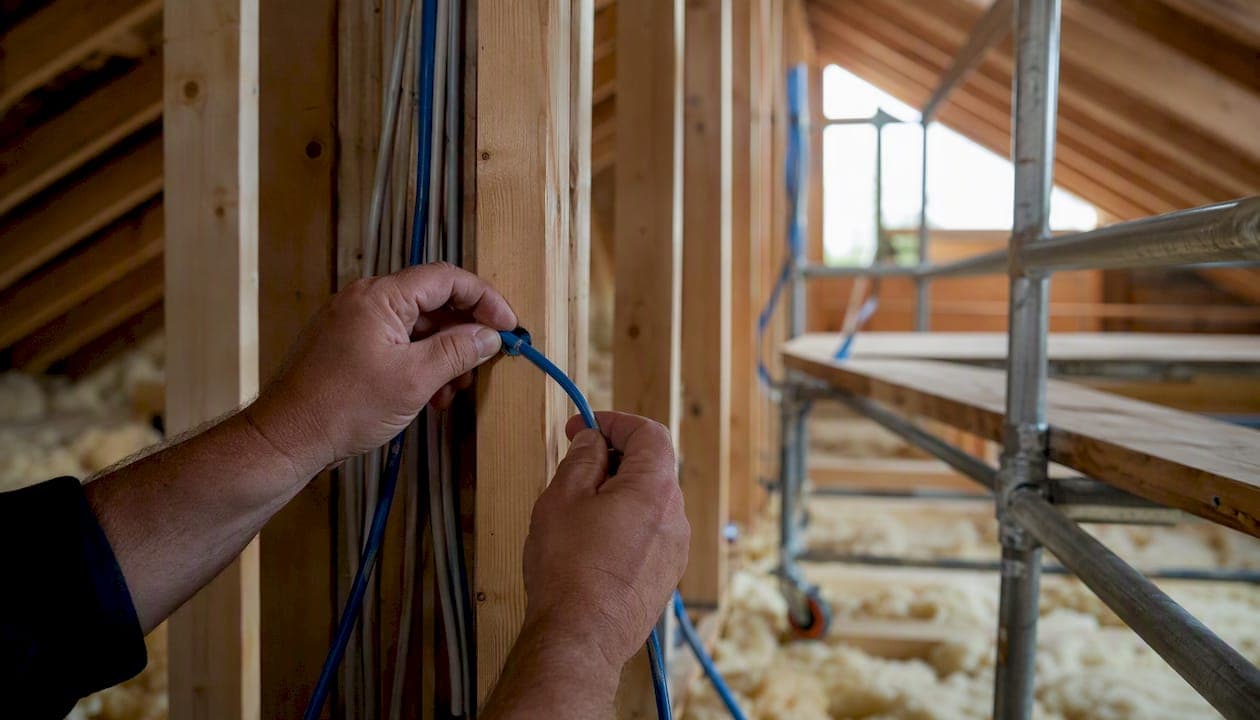
If you can run Ethernet cable, do it. Wired backhaul is the single most effective upgrade you can make to a mesh network, and the gap between it and wireless alternatives is not subtle. RTINGS testing confirms that wired backhaul delivers superior throughput, lower latency, and more consistent performance than any wireless backhaul method in real home conditions. Eero's setup guidance puts it plainly: connecting nodes via Ethernet frees wireless bandwidth and improves speed and latency for 4K streaming and gaming.
Where Ethernet isn't possible, MoCA over existing coax is the next best choice. Wireless backhaul, whether on a dedicated radio or a shared band, is a deliberate compromise, not a first preference.
Before you read further, run through these three steps:
- Check whether your home already has Ethernet drops or coax outlets near where you'd place satellite nodes.
- Identify the one or two locations that matter most: home office, main TV, or gaming setup.
- Test your current backhaul link quality in your mesh app and note whether nodes show wired or wireless connections.
Pro Tip: Most mesh apps (Eero, TP-Link Deco, Google Home) display a wired icon next to any node using Ethernet backhaul. If you don't see it, the node is on wireless regardless of what cable you think is plugged in.
Key Takeaways
Wired Ethernet backhaul is the single most effective upgrade for mesh network performance, and the right topology and cable choice determine whether that upgrade actually delivers.
| Point | Details |
|---|---|
| Ethernet first, always | Run Cat6 to key nodes wherever cable is feasible; it outperforms every wireless alternative on throughput and latency. |
| Star topology over daisy-chain | Connect every node directly to a central switch to avoid cascading bottlenecks at each hop. |
| MoCA where coax exists | MoCA 2.5 delivers 500–900 Mbps over existing coax and is the strongest non-Ethernet alternative. |
| Wire the highest-priority node first | One wired drop to the home office or entertainment hub delivers more improvement than adding multiple wireless satellites. |
| Djcengineering for complex installs | Professional site survey, structured cabling, and managed switch commissioning for South East Queensland homes and businesses. |
Table of Contents
- What are the main mesh backhaul options?
- How does Ethernet backhaul actually work?
- How does wireless backhaul perform compared to wired?
- How do you design a hybrid mesh with wired and wireless nodes?
- What are the best alternatives when you can't run Ethernet?
- How do you set up and troubleshoot mesh backhaul?
- When is wired backhaul worth the investment?
- The real trade-off most homeowners miss
- Professional wired backhaul installation in South East Queensland
- Sources
What are the main mesh backhaul options?
Every mesh system needs a way to move traffic between the main router and its satellite nodes. That link is the backhaul, and the medium you choose determines how much of your internet speed actually reaches the far end of your home. SpeedtestHQ's comparison guide breaks down six realistic options with throughput and latency ranges for each.
Ethernet (Cat5e / Cat6 / Cat6a)
The gold standard. A dedicated wired path carries no airtime contention, supports full-duplex traffic, and scales to 2.5GbE or higher with the right cable and ports. Installation requires running cable through walls or ceilings, which is the main barrier.
MoCA (coax)
MoCA 2.5 adapters convert existing coaxial cable into a high-speed data link. Performance approaches Ethernet in most homes, and installation is straightforward if coax outlets are already in the right rooms. A point-of-entry (POE) filter is required to prevent signal leakage onto the neighborhood cable plant.
Powerline (PLC)
Powerline adapters send data over your home's electrical wiring. Setup is simple, but performance varies significantly depending on circuit layout, wiring age, and interference. Nodes on separate electrical circuits often perform poorly.
Dedicated wireless backhaul (tri-band / 6 GHz)
Tri-band mesh systems reserve a third radio, often on 5 GHz or 6 GHz, exclusively for node-to-node traffic. Client devices never compete with backhaul for airtime. Wi-Fi 6E and Wi-Fi 7 systems using 6 GHz for backhaul come closest to wired consistency among wireless options.
Shared wireless backhaul (dual-band)
The most common and most limited option. A single 5 GHz or 2.4 GHz radio handles both client connections and backhaul simultaneously. Every byte of backhaul traffic competes with your devices for the same airtime.
Point-to-point wireless bridges
Dedicated outdoor or directional units that link two buildings or span long distances where cable runs are impractical. Not a standard mesh feature, but a practical solution for detached garages, workshops, or granny flats.
| Backhaul type | Typical throughput | Latency feel | Install difficulty | Best use case |
|---|---|---|---|---|
| Ethernet (Cat6) | Very high | Very low | Moderate to high | Primary choice wherever cable can be run |
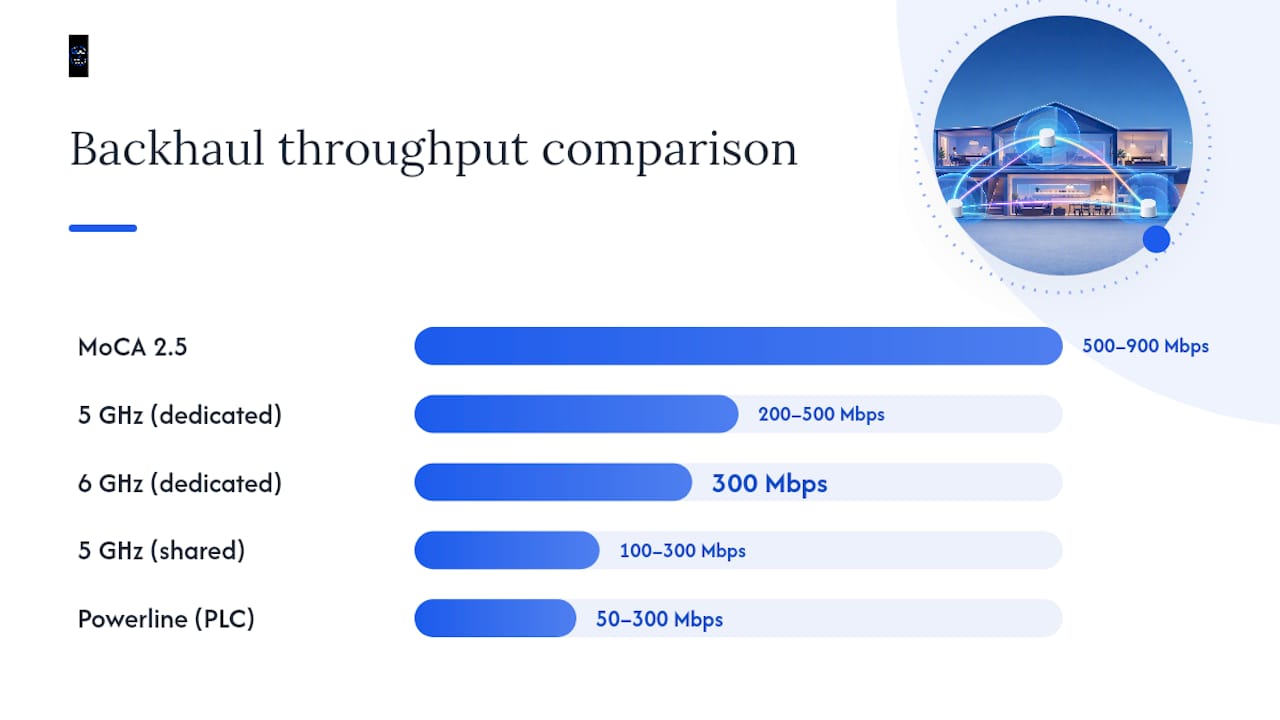
| MoCA 2.5 | 500–900 Mbps | Low | Low (coax in place) | Homes with existing coax to the right rooms |
| Dedicated 6 GHz wireless | 300 Mbps | Low to moderate | Low | Apartments or rentals where wiring is impossible |
| Dedicated 5 GHz wireless | 200–500 Mbps | Moderate | Low | Single-story homes with clear line of sight between nodes |
| Shared 5 GHz wireless | 100–300 Mbps | Moderate to high | None | Small homes, low-demand use only |
| Powerline (PLC) | 50–300 Mbps | Variable | Low | Last resort when nothing else is available |
Pro Tip: In apartments and rentals where you can't run cable, a Wi-Fi 6E or Wi-Fi 7 system with a dedicated 6 GHz backhaul radio is the closest you'll get to wired performance without touching a wall.
How does Ethernet backhaul actually work?
Ethernet backhaul is straightforward in concept: you connect a satellite node's LAN port to the same switch or router that your main mesh unit connects to, and the system detects the wired path automatically. TP-Link's EasyMesh documentation confirms that Ethernet backhaul activates automatically once units on the same EasyMesh network are connected by cable, the wireless backhaul drops off, and the app displays an Ethernet icon next to the wired satellite. If the cable is disconnected, the node falls back to wireless without any manual intervention.
Star vs. daisy-chain topology
The topology you choose matters as much as the cable itself. In a star topology, every satellite node connects directly to a central switch or router. In a daisy-chain, Node B connects to Node A, and Node C connects to Node B. Daisy-chaining creates a bottleneck at every hop: traffic from Node C must pass through Node B's port before reaching the router, halving available bandwidth at each step. Star topology is standard practice for reliable wired backhaul.
Cable and port specifications
Most current mesh nodes top out at 1 Gbps LAN ports, so Cat6 covers you today and for the next hardware cycle. If your router or switch has 2.5GbE ports, Cat6 handles that too. Cat6a is worth the small extra cost on new builds or major renovations when you're pulling cable once and want it to last a decade.
PoE (Power over Ethernet) is worth considering if you plan to mount nodes in ceilings or high on walls where a power outlet isn't nearby. A PoE-capable managed switch eliminates the need for a separate power adapter at each node location.
Switch selection and common gotchas
An unmanaged gigabit switch works for most home setups. If you're running more than four nodes or mixing mesh with IPTV or VLANs, a managed switch gives you loop detection (spanning tree), port-level diagnostics, and multicast control. Some mesh systems use IEEE 802.1Q VLANs or multicast for backhaul signaling, and a switch that blocks multicast forwarding can prevent Ethernet backhaul from activating even when the cable is physically connected.
For comms rack hardware and structured cabling components, CommsBuyer stocks a range of cabinets and patch panels suited to home and small-business installs.
Wired backhaul setup checklist
- Plan your cable drops: identify where each satellite node will sit and map the shortest cable path back to the central switch location.
- Choose your switch: unmanaged gigabit for simple setups, managed for four or more nodes or mixed-use networks.
- Run Cat6 from the switch to each node location; label both ends.
- Connect each node's LAN port (not the WAN port) to the switch.
- Power on nodes and wait 2–3 minutes for the mesh system to detect the wired links.
- Open the mesh app and confirm each satellite shows an Ethernet or wired icon.
- Run a speed test at a client device connected to a satellite node and compare it to a test at the main router.
Troubleshooting wired backhaul activation failures
- Confirm the cable is plugged into the node's LAN port, not the WAN port. Many nodes have both, and plugging into WAN creates a double-NAT problem rather than a backhaul link.
- Try a direct cable between the main router and the satellite, bypassing the switch entirely, to rule out switch compatibility issues.
- Check that the switch port's LED is lit and showing link activity.
- Reboot both the main router and the satellite node with the cable connected.
- Check for multicast filtering settings on managed switches and disable IGMP snooping if it's blocking mesh traffic.
- Update firmware on both the mesh system and the switch before assuming a hardware fault.
Pro Tip: TP-Link's Deco troubleshooting guide recommends changing switch ports as a first diagnostic step when Ethernet backhaul won't activate. A faulty port is more common than a faulty cable.
How does wireless backhaul perform compared to wired?
Wireless backhaul works because Wi-Fi is a shared, half-duplex medium: only one device transmits at a time on a given channel. When a satellite node uses the same radio for both client traffic and backhaul, every byte traveling between nodes competes with every byte your devices are sending or receiving. The result is that a satellite node on shared wireless backhaul can deliver roughly half the throughput of the main router under load, and that penalty compounds with each additional wireless hop.
Dedicated vs. shared wireless radios
Tri-band systems solve the contention problem by reserving one radio entirely for backhaul. Your client devices never touch that radio, so their throughput isn't cut in half by backhaul traffic. The dedicated radio is typically a second 5 GHz band or, in newer systems, the 6 GHz band. A dedicated 6 GHz backhaul link running on 160 MHz channels can sustain throughput that approaches a gigabit Ethernet connection in ideal conditions, though walls and distance reduce that quickly.
Dual-band systems have no dedicated backhaul radio. The 5 GHz band handles both clients and backhaul simultaneously, which is why dual-band mesh is adequate for light use but struggles under simultaneous 4K streaming, video calls, and gaming.
Performance note: RTINGS' wired vs. wireless backhaul analysis finds that wired backhaul consistently outperforms wireless backhaul on throughput and latency across real home test scenarios, and that even dedicated tri-band and 6 GHz wireless backhaul rarely matches the consistency of a wired link.
Wi-Fi 6, 6E, and 7 effects on wireless backhaul
Wi-Fi 6 (802.11ax) improves spectral efficiency through OFDMA and BSS Coloring, which reduces interference between neighboring networks. For backhaul, the practical gain is better performance in dense environments. Wi-Fi 6E opens the 6 GHz band, giving dedicated backhaul radios a clean, uncongested spectrum with up to 1,200 MHz of available bandwidth. Wi-Fi 7 adds Multi-Link Operation (MLO), which lets a node bond multiple bands simultaneously, improving both throughput and reliability on wireless backhaul links.
None of these advances eliminate the fundamental half-duplex constraint, but they push wireless backhaul closer to wired performance in favorable conditions.
Placement tips for wireless backhaul links
- Position satellite nodes within clear line of sight of the main router or the nearest wired node where possible.
- Avoid placing nodes directly behind large appliances, concrete pillars, or in metal enclosures.
- The optimal placement for a wireless satellite is roughly two-thirds of the way between the router and the coverage dead zone, not at the dead zone itself.
- Before finalizing placement, check the backhaul signal strength in the mesh app. Most systems show a link quality indicator; aim for "good" or better, not just "connected."
- Run a speed test at the satellite node's location before mounting it permanently.
Pro Tip: A node placed too far from the router to get a strong backhaul signal will give you coverage but not speed. Closer placement with a stronger backhaul link almost always produces better client throughput than pushing the node to the edge of its wireless range.
How do you design a hybrid mesh with wired and wireless nodes?
Most homes end up with a hybrid setup: a few nodes wired where cable runs are practical, and one or two wireless nodes filling in coverage gaps. Getting the most out of that mix comes down to choosing which nodes to wire first.
Wire the nodes that matter most for performance, not the ones that are easiest to reach. That usually means:
- The home office node, where video calls and file transfers happen.
- The main entertainment hub, where 4K streaming and gaming consoles live.
- Any node separated from the router by concrete floors, brick walls, or more than one story of vertical distance.
- The node that serves as the "parent" for any wireless satellite further down the chain.
Wireless nodes work well for short-range fill-in coverage in rooms with light use: a bedroom, a hallway, a guest room. The key is that they should connect to a wired node as their backhaul parent, not to another wireless node. Every wireless hop in the chain multiplies the throughput penalty.
Placement examples by floor plan
Single-story home: Run one Ethernet drop to a node at the far end of the house. The main router covers the front half; the wired satellite covers the back. No wireless hops needed.
Two-story home: Wire a node on each floor if possible. A node on the second floor connected via Ethernet through the ceiling eliminates the worst-case scenario: a wireless backhaul link fighting through a concrete or timber floor. If only one drop is feasible, wire the second-floor node and let the ground floor rely on the router's direct coverage.
Apartment: Wiring is rarely an option. Use a tri-band or Wi-Fi 6E system with a dedicated backhaul radio, and keep the satellite node within clear line of sight of the main unit.
Mixing ecosystems and keeping it manageable
Stick to one mesh ecosystem where possible. Mixing brands means losing centralized management, roaming handoff coordination, and app-based backhaul verification. EasyMesh (IEEE 802.11s) and similar standards allow mixed-vendor setups in theory, but real-world interoperability is inconsistent. The simplicity of a single-vendor system is worth more than the marginal hardware savings of mixing brands.
When budget or wall access limits how many drops you can run, prioritize in this order: the node with the most connected devices, the node farthest from the router, and any node that currently shows a weak wireless backhaul signal in the app.
What are the best alternatives when you can't run Ethernet?
Techscribe's backhaul decision guide frames it clearly: run Ethernet if you can, use MoCA where coax exists, and treat wireless mesh as a deliberate compromise when neither is practical. That hierarchy holds up in practice.
MoCA: the closest thing to Ethernet without new cable
MoCA 2.5 adapters use the coaxial cable already installed for cable TV or satellite dishes. If you have coax outlets in the rooms where your nodes will sit, MoCA is a strong choice. Performance is close to Ethernet at typical home distances, with throughput in the 500–900 Mbps range and latency that's low enough for gaming and video calls.
Two installation details matter. First, you need a MoCA adapter at each end of the coax run, one connected to your router and one connected to the satellite node. Second, and this is the step most guides skip: install a point-of-entry (POE) filter where the coax enters your home. Without it, your MoCA signal leaks onto the neighborhood coax plant, which is both a security issue and a potential interference problem for neighbors on the same cable system.
Powerline: realistic expectations
Powerline adapters are easy to set up but sensitive to your home's electrical wiring. On a single circuit with modern wiring, they can deliver 200–300 Mbps. On older wiring or across separate circuits (common in larger homes), throughput can drop to 50 Mbps or less, with variable latency that makes real-time applications unreliable. They're a reasonable last resort for a low-demand device in a room you can't wire any other way, not a substitute for Ethernet or MoCA in a performance-critical location.
Point-to-point wireless bridges
For detached buildings, a P2P wireless bridge is the right tool. A pair of directional antennas mounted with clear line of sight can deliver 100–500 Mbps over distances of 50–200 meters, depending on the hardware. This isn't a consumer mesh feature; it requires separate hardware and a basic understanding of antenna alignment. For a home workshop, granny flat, or barn, it's far more reliable than extending mesh wirelessly across open ground.
| Alternative | Typical throughput | Key requirement | Main limitation |
|---|---|---|---|
| MoCA 2.5 | 500–900 Mbps | Existing coax to both rooms | POE filter required; coax must be continuous |
| Powerline (PLC) | 50–300 Mbps | Shared electrical circuit | Degrades on old wiring or separate circuits |
| P2P wireless bridge | 100–500 Mbps | Clear line of sight | Requires separate hardware; outdoor mounting |
- MoCA is the best non-Ethernet option for most homes with existing coax.
- Powerline is a fallback, not a primary solution.
- P2P bridges solve the detached-building problem that mesh can't handle reliably.
How do you set up and troubleshoot mesh backhaul?
Setup checklist
- Pre-work: Confirm cable runs, switch location, and node placement before buying hardware.
- Cabling: Run Cat6 from the central switch to each planned node location; label both ends at the wall plate and at the patch panel or switch.
- Switch configuration: If using a managed switch, disable any IGMP snooping or multicast filtering that could block mesh backhaul signaling. Enable spanning tree to prevent loops.
- Node connection order: Connect the main router to the switch first, then connect each satellite node's LAN port to the switch. Power on the main router before satellites.
- App verification: Open the mesh app after 2–3 minutes and confirm each satellite shows a wired backhaul icon. If a node still shows wireless, check the port connection and reboot.
- Speed test: Run a test at a client device connected to each satellite node. Compare results to a test at the main router to confirm backhaul is performing as expected.
Troubleshooting checklist
- Physical link: Check that switch port LEDs are lit for every node connection. A dark port means no link.
- App status: Confirm the mesh app shows wired backhaul for each connected node. Wireless icons after cabling mean the system hasn't detected the link.
- Speed and latency: Run a speed test at the satellite node and compare to the main router. A large gap suggests backhaul is still wireless or the cable has a fault.
- Loop detection: If the network becomes unstable after adding a switch, check for accidental loops (two cables connecting the same two devices).
- Multicast blocking: On managed switches, verify multicast forwarding is enabled for the VLANs carrying mesh traffic.
- Firmware: Update mesh node firmware before diagnosing hardware faults. Backhaul detection bugs are common in early firmware releases and are usually fixed in updates.
Testing methodology
Run speed tests in three locations: at a device connected directly to the main router (baseline), at a device connected to a wired satellite node, and at a device connected to a wireless satellite node.
For latency, a simple ping test to 8.8.8.8 from each location tells you more about real-world responsiveness than throughput alone. Wired backhaul nodes should show latency within a few milliseconds of the router. Wireless nodes, especially on shared backhaul, often add 10–30 ms or more.
Power cycling the mesh system (router first, then satellites, 30 seconds apart) resolves a surprising number of backhaul detection failures after firmware updates or configuration changes.
When is wired backhaul worth the investment?
Some homes genuinely need wired backhaul. The question isn't whether it's better (it is), but whether the performance gap is large enough to justify the installation cost and effort.
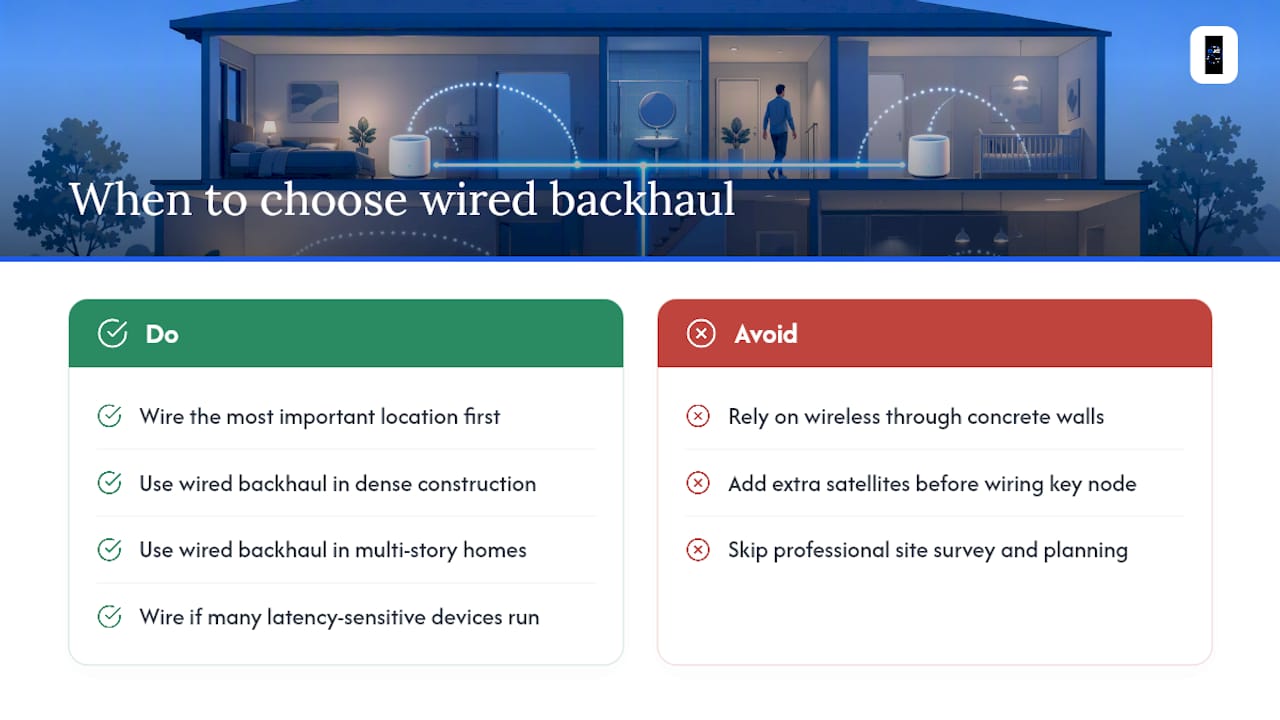
Three scenarios make the case clearly. First, dense construction: brick, concrete, or double-brick walls absorb 5 GHz signals aggressively. A wireless backhaul link through two concrete walls can lose enough signal strength that the satellite node delivers less throughput than a basic single-router setup. Second, multi-story homes where the router sits on the ground floor and devices are spread across two or three levels. Vertical propagation through timber or concrete floors is consistently worse than horizontal propagation through the same material. Third, homes with many latency-sensitive devices running simultaneously: video calls, gaming, home automation, and 4K streaming all competing for the same wireless backhaul create contention that dedicated wired links eliminate entirely.
Performance context: RTINGS' analysis and SpeedtestHQ's comparison data both show that wired backhaul consistently outperforms wireless alternatives on throughput and latency, with the gap widening under load. Dedicated 6 GHz wireless backhaul narrows the gap but doesn't close it.
A professional installation adds value beyond just running cable. A site survey identifies the optimal node placement before a single cable is pulled, a star topology is planned from the start rather than retrofitted, and managed switches with PoE simplify both the initial install and any future changes. Professional Wi-Fi design also accounts for interference sources, roaming thresholds, and channel planning that consumer mesh apps don't expose.
As Impressive Magazine's Wi-Fi 7 analysis notes, once you have a wired backhaul in place, the performance differences between mesh nodes and dedicated access points shrink considerably. The backhaul is the primary determinant of real-world performance, not the node hardware.
Pro Tip: A single well-placed wired drop to the right node often delivers a larger practical improvement than adding two or three additional wireless satellites. Wire the most important location first, then assess whether you still need more coverage.
The real trade-off most homeowners miss
The conversation about mesh backhaul almost always focuses on the wrong variable. People spend hours comparing node hardware, reading about Wi-Fi 6E vs. Wi-Fi 7, and debating which mesh brand has the best app. The backhaul medium gets a paragraph, if that.
Here's what actually happens in practice: a home with a $150 mesh system and a properly wired star topology will outperform a $600 Wi-Fi 7 system on shared wireless backhaul in most real-world conditions. The hardware ceiling matters far less than whether the backhaul link is contention-free.
The second mistake is treating wireless backhaul as a permanent solution rather than a starting point. Wireless mesh is easy to set up and genuinely useful for getting coverage quickly. But in homes with dense construction, multiple floors, or heavy simultaneous use, wireless backhaul is a bottleneck that no amount of node upgrading will fix. The right response is to wire the key drops, not to buy a newer mesh kit.
For complex builds, brick homes, or any situation where the cable path isn't obvious, a professional site survey pays for itself quickly. Not because the installer has magic tools, but because planning the topology before pulling cable avoids the expensive mistakes: drops in the wrong locations, daisy-chained nodes, and switches that block mesh signaling. The DJC Engineering approach to structured cabling starts with a site survey precisely because the physical layout of a home determines what's possible before any hardware decision is made.
Professional wired backhaul installation in South East Queensland
Djcengineering handles the full scope of wired backhaul projects: site survey, structured Cat6/Cat6a cabling, managed switch installation, PoE node mounting, and end-to-end commissioning so every node shows a verified wired backhaul link before the job is closed. The networking and structured cabling service covers comms rack builds, patch panel termination, and switch configuration for homes and businesses across South East Queensland.

With a 98% first-visit fix rate and accredited installations, Djcengineering scopes each job to the physical realities of the building rather than a generic template. For homes with brick or concrete construction, multi-story layouts, or security camera networks that share the same wired infrastructure, that scoping step is what separates a network that works from one that needs revisiting. Get in touch for a quote on a Wi-Fi design and installation that includes a proper wired backhaul plan.
Sources
- TP-Link EasyMesh Ethernet backhaul connects main router to a satellite via cable
- Mesh Wifi with Ethernet Backhaul
- Rtings
- Wi-Fi Mesh Backhaul: Wired vs Wireless Backhaul Explained | SpeedtestHQ
- Wi-Fi Backhaul Guide 2026: Fiber, Ethernet, MoCA, Mesh
Recommended
- Professional WiFi Design vs Mesh: Why Your Gold Coast Home Still Has Black Spots | DJC Engineering
- Commercial WiFi Systems: Engineering High-Performance Networks for QLD Businesses | DJC Engineering
- Starlink: High-Speed Internet Guide for Rural QLD | DJC Engineering
- Professional WiFi Design & Installation: Engineering Seamless Connectivity in SE QLD | DJC Engineering