
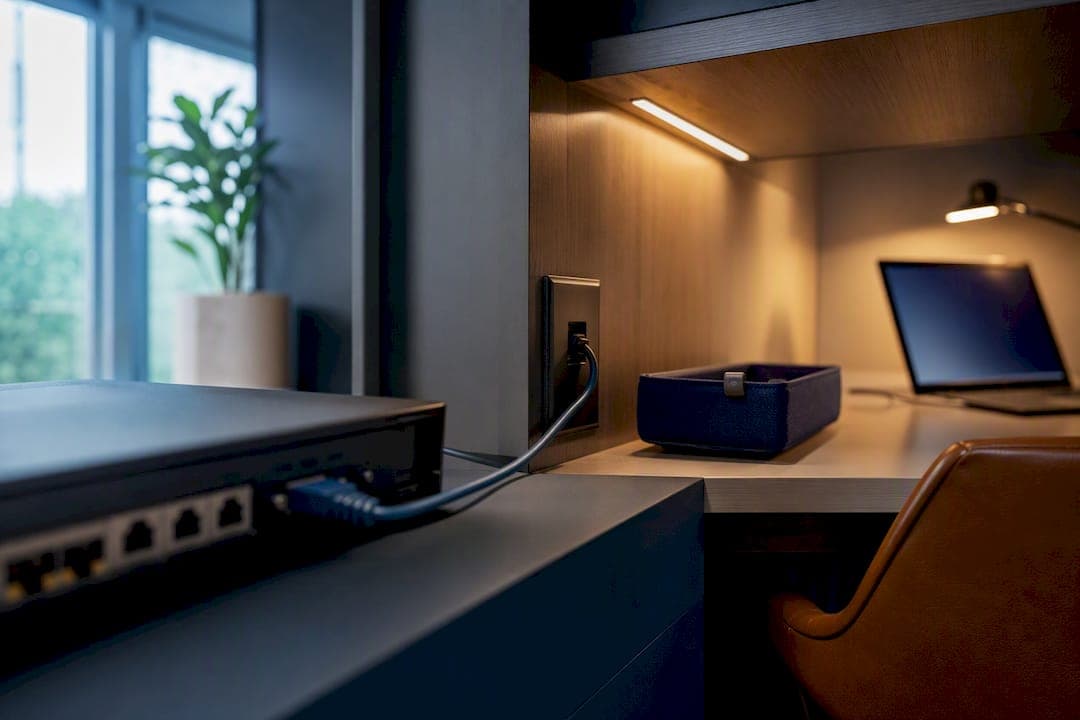
The fastest path to a secure, reliable remote work network is a wired Ethernet connection to your primary device, an hour of router hardening, a separate network for work traffic, and QoS turned on to protect video calls. Add a VPN like WireGuard only once those basics are locked down. Standards like WPA3 and a properly configured firewall matter more than any premium router you can buy, and a firm like a licensed professional only gets called in once these fundamentals are handled and something structural still isn't working.
TL;DR:
- Most security and reliability issues stem from factory default settings, which can be fixed within an hour using basic steps like updating firmware and enabling WPA3.
- Wired Ethernet connections and network segmentation, such as separate SSIDs or VLANs, are crucial for stable video calls and protecting work devices from IoT vulnerabilities.
- Proper cabling, including concealed Cat6 runs and professionally placed access points, significantly improves network performance in larger homes or offices.
- QoS should prioritize video conferencing traffic with specific speed, latency, jitter, and packet loss targets to ensure consistent call quality.
- Using WireGuard or ZTNA with MFA and split tunneling enhances remote access security while maintaining performance, with professional installation recommended for complex or large setups.
Table of Contents
- How Do You Set Up a Remote Work Network Setup Checklist?
- Modem, Router, or Mesh: Which Hardware Do You Actually Need?
- Locking Down the Network So a Smart TV Can't Touch Your Work Laptop
- What Speed and Latency Do You Actually Need for Video Calls?
- Should You Use a VPN, WireGuard, or ZTNA for Remote Access?
- A 1-to-3-Week Rollout: What to Do When
- Why Professional Installation Matters for Mission-Critical Setups
- Getting Your Printer and Peripherals Onto the Right Network Segment
- What Actually Trips People Up
- Get a Site Survey and Fixed-Scope Quote From Djcengineering
- Sources
- FAQ
How Do You Set Up a Remote Work Network Setup Checklist?
Most of the security and reliability problems in a home office trace back to five things left on factory settings. None of these require special tools, and you can finish the entire list in under an hour if your hardware already supports the basics.
- Change the router's admin username and password. Default logins like "admin/admin" are the first thing scanning tools try.
- Update the firmware. Check for a one-click update in the router's admin panel; this alone closes known vulnerabilities.
- Enable WPA3 (or WPA2 with AES if your devices are older) and turn off WPS, the button-press pairing feature that's trivially exploitable.
- Run your primary work device over Ethernet instead of Wi-Fi, then run a quick speed and latency test to confirm the connection is stable.
- Turn on the guest or IoT network and apply a basic QoS rule that gives your work device priority.
Power-cycle your modem and router in that order (modem first, wait 30 seconds, then router) if anything looks off, and check the modem's status lights to confirm the ISP link itself is up before troubleshooting further downstream.
Pro Tip: Screenshot your router's default settings page before you change anything. If a firmware update resets your custom config, you'll want the "before" picture to rebuild it fast.
Modem, Router, or Mesh: Which Hardware Do You Actually Need?
Most ISP-supplied combo units bundle the modem and router into one box, and that convenience comes at a cost: many lock down VLANs, custom QoS, and advanced firewall rules. Putting the ISP unit into bridge mode, or replacing it with a separate modem and your own router, hands that control back to you. A practical home network setup for remote work depends on exactly this kind of flexibility, paired with adequate ISP speeds and a router that supports Wi-Fi 6.
Wiring matters more than most people expect. Running Cat6 to the desk where you actually work eliminates the two things that kill video calls: interference and congestion. You can run a single cable yourself along a baseboard for a weekend fix, but concealed cabling through walls and ceilings is a job for a licensed installer if you want it done without cutting into plaster you can't patch.
On mesh versus single router: a mesh system with wired backhaul, or professionally placed PoE access points, consistently beats consumer range extenders for coverage in larger homes, according to a home office network setup analysis. Extenders simply rebroadcast a weaker signal; wired backhaul gives every node a full-strength connection back to the source.
A few hardware add-ons round out a serious setup:
- A managed switch if you need more wired ports than your router provides.
- PoE injectors or a PoE switch if you're adding access points away from an outlet.
- A small UPS on the modem and router so a brief power blip doesn't drop your call mid-sentence.
Locking Down the Network So a Smart TV Can't Touch Your Work Laptop
Network segmentation is the single most underused security control in home offices. Keeping your work laptop on a separate SSID or VLAN from your smart TV, doorbell camera, and kids' tablets means a compromised IoT device can't reach your work files, because segmentation isolates work devices from everything else on the network by design.
The fuller router hardening checklist looks like this:
- Change default admin credentials and disable remote administration access.
- Turn on automatic firmware updates where the router supports it.
- Disable WPS entirely rather than just leaving it off by default.
- Set up a guest SSID for visitors and a separate one for IoT devices; ask an installer about VLANs if you need stronger isolation than SSID separation alone provides.
- Point your DNS at a filtering resolver such as Cloudflare's 1.1.1.2, which blocks known malicious domains before a connection is even made.
Endpoint protection on the work device itself, paired with these network-level controls, covers the two layers that matter most: the device and the path it travels.
It's worth borrowing one idea from enterprise security even in a home setup: Zero Trust, which assumes no device or user is automatically trusted just because it's on the network. In practice, that means giving each device only the access it needs and re-verifying it rather than granting a blanket pass once it's connected.
Pro Tip: If your router supports it, rename your Wi-Fi networks something boring. "Home_WiFi_2" attracts less attention than "Smith_Family_5G," which advertises exactly whose network it is.
What Speed and Latency Do You Actually Need for Video Calls?
QoS (Quality of Service) lets you tell your router which traffic matters most, either by device (your work laptop's MAC address) or by application (Zoom, Teams). The typical priority order is video conferencing first, VoIP second, everything else after, so a Netflix stream in the next room doesn't steal bandwidth mid-meeting.
Run these four tests before trusting any setup for daily video calls:
| Metric | Target for stable video calls |
|---|---|
| Download speed | 25 Mbps |
| Upload speed | 5+ Mbps |
| Ping (latency) | Low latency |
| Jitter | Under 30ms |
| Packet loss | Under 1% |
If results fall short, check for wireless interference before blaming your ISP:
- Switch your router to a less congested Wi-Fi channel (a free app can scan for this).
- Enable band steering so newer devices default to the less crowded 5GHz band.
- Move the router off the floor and away from microwaves and cordless phone bases.
- Prefer a wired connection outright for any device running video calls all day.
Keep a phone hotspot as a backup plan for the days your primary connection drops entirely. It won't match a fixed connection for sustained calls, but it buys you enough time to finish a meeting or troubleshoot the real problem.
Should You Use a VPN, WireGuard, or ZTNA for Remote Access?
Legacy VPN concentrators route all your traffic through a single company gateway, which creates a bottleneck and a single point of failure. Newer architectures favor WireGuard and Zero Trust Network Access because they improve performance and reduce blast radius compared to older VPN models, since a compromised credential under ZTNA only exposes the one application it was granted, not the entire network.
For most individuals and small teams, here's what to configure and check:
- Decide on split tunneling. Sending only work traffic through the VPN (rather than all traffic) is the default recommendation for most small businesses, since it keeps your Netflix and browsing off the company network entirely.
- Set DNS correctly on the client so work domain lookups resolve through the VPN, not your home router.
- Configure AllowedIPs routing in WireGuard to scope exactly which subnets the tunnel covers, rather than defaulting to everything.
- Enable KeepAlive so mobile or Wi-Fi connections don't silently drop the tunnel when the network briefly changes.
- Require MFA on every VPN login, no exceptions, even for a one-person operation.
When setting up a business VPN, plan authentication, non-overlapping IP pools, split tunneling, and logging from day one. SaaS VPN platforms tend to suit small businesses better than self-hosted concentrators simply because there's less to manage.
Pro Tip: If your employer offers a choice, ask whether per-application access is available instead of full-network VPN. It's faster, and it means IT isn't routing your entire home network through corporate infrastructure just so you can reach one file server.
A 1-to-3-Week Rollout: What to Do When
Spread the work out instead of trying to fix everything in one sitting. Trying to do all of this in a single evening is how people give up halfway through.
- Days 0 to 7: Complete the 30 to 60 minute quick wins checklist, then verify with speed, latency, and jitter tests during an actual work call.
- Weeks 1 to 3: Upgrade hardware if needed (separate modem/router, mesh with wired backhaul), set up segmentation, tune QoS rules, and re-run your tests to confirm improvement.
- Call a professional if you still have wireless dead zones after adding mesh nodes, if you need concealed Cat6 runs through walls or ceilings, or if you're placing multiple PoE access points across a larger home or office.
A professional installer should hand you a documented network map, tested cable runs, and confirmed speeds at every access point, not just a working Wi-Fi light.
Why Professional Installation Matters for Mission-Critical Setups
Consumer routers and DIY cabling handle light use fine, but they tend to buckle under sustained video calls, multiple devices, and business-grade uptime expectations. Professional-grade hardware and structured cabling deliver a consistent, low-latency connection under load that consumer gear generally can't match, which is exactly what a full workday of video calls demands.
That comes from doing the boring parts properly:
- A site survey to map dead zones and plan access point placement before any cable is run.
- Structured cabling with concealed Cat6 runs, terminated to a proper standard rather than crimped on-site.
- Managed switches and PoE access points, professionally placed rather than plugged in wherever an outlet happens to be.
- Starlink and NBN commissioning, so satellite or fiber connections are configured correctly from day one rather than left on default settings.
Clients typically receive a fixed-scope quote after the survey, a full installation with no subcontractors involved, and post-install validation confirming speeds and coverage before the job is signed off.
Getting Your Printer and Peripherals Onto the Right Network Segment
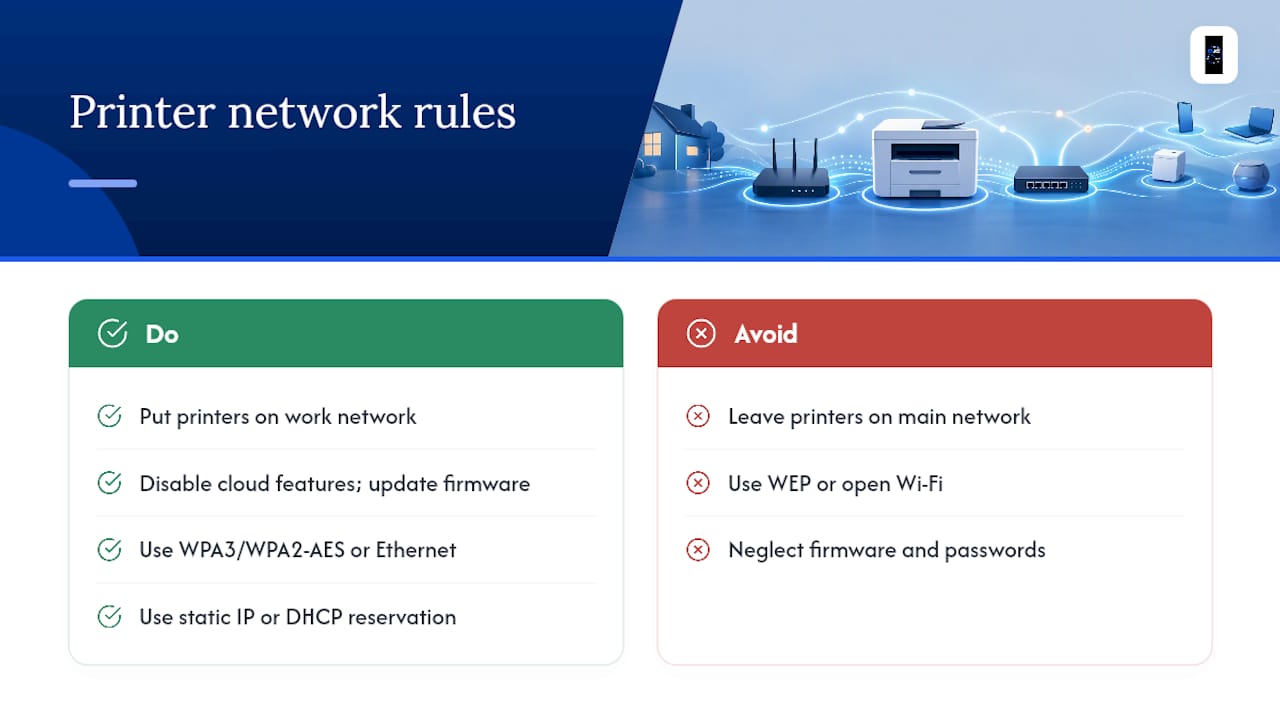
Printers are a common weak point precisely because people forget they're networked devices too. A printer left on the main network, reachable by every device in the house, is an easy pivot point if any single device gets compromised.
Put shared printers and peripherals like network-attached scanners on the same segment as your work devices, not the IoT or guest network, since IoT segments are typically the least trusted zone on the network. If your printer supports it, disable any cloud printing or remote access features you don't actually use. These are convenient but expand the attack surface for no real benefit in a home office.
For wireless printers, use WPA3 or WPA2 with AES on the printer's own connection just as you would for a laptop. Older printers sometimes only support WEP or open connections. If that's the case, connect it via Ethernet instead of leaving it wide open on Wi-Fi.
Give the printer a static IP or a DHCP reservation on your router so its address doesn't change and break saved print queues. USB peripherals connected directly to a work computer inherit whatever protection is on that device, but any peripheral with its own network connection, like a network-attached storage drive, needs the same firmware update and password discipline as your router. Check for updates a few times a year, since these devices are frequently overlooked entirely once installed.
What Actually Trips People Up
DIY covers most homes fine. The point where it stops working is usually a dead zone mesh nodes can't fix or cabling that needs walls opened. Structured cabling and a proper site survey solve more problems than another round of router settings ever will.
— Dylan
Get a Site Survey and Fixed-Scope Quote From Djcengineering
A licensed installer provides an alternative to guesswork and return visits for remote work network setups by scoping the job once, wiring it right the first time, and skipping subcontractor hand-offs that usually cause delays. If you've worked through the checklist above and you're still fighting dead zones, unreliable Starlink or NBN performance, or a home that needs proper structured cabling, this is the point where a site visit pays for itself.

Djcengineering handles IT and network installation for homes, businesses, and rural properties, including structured cabling, Wi-Fi design with professionally placed access points, and Starlink or NBN commissioning done as one coordinated job. Enquire and you'll get a site survey first, then a fixed-scope quote, then installation with post-install validation before anyone calls it done. If a wired data cabling upgrade or a full network redesign is what your setup actually needs, request a quote and get a site survey booked.
Sources
- Zero trust architecture: practical guide for Australian businesses
- Securing remote work infrastructure 2026: VPN + Zero Trust
- Home Network Setup for Remote Work: 9-Step Guide (2026) - GuidingHow
- How to set up a business VPN for remote workers
FAQ
How do I set up a remote network at home?
Start with a wired connection to your primary device, harden the router (new admin login, updated firmware, WPA3, WPS off), separate work traffic from IoT devices, and enable QoS to prioritize video calls.
How can I connect to my work network from home?
Most companies require a VPN client or ZTNA app; configure split tunneling so only work traffic routes through it, enable MFA, and set KeepAlive so the connection survives brief network interruptions.
What is the best setup for remote work?
The best setup pairs a wired Ethernet connection to your work device with a hardened, segmented router and QoS rules that protect video and voice traffic during household congestion.
What does it mean to have a remote work setup?
A remote work setup is the combination of internet connectivity, hardware (router, cabling, access points), and security controls (segmentation, VPN, firewall rules) that let you work reliably and safely from home.
Do I need a professional to set up my home office network?
Basic hardening and segmentation are DIY-friendly, but concealed cabling, persistent dead zones, or business-grade access point placement usually call for a licensed professional installer.