
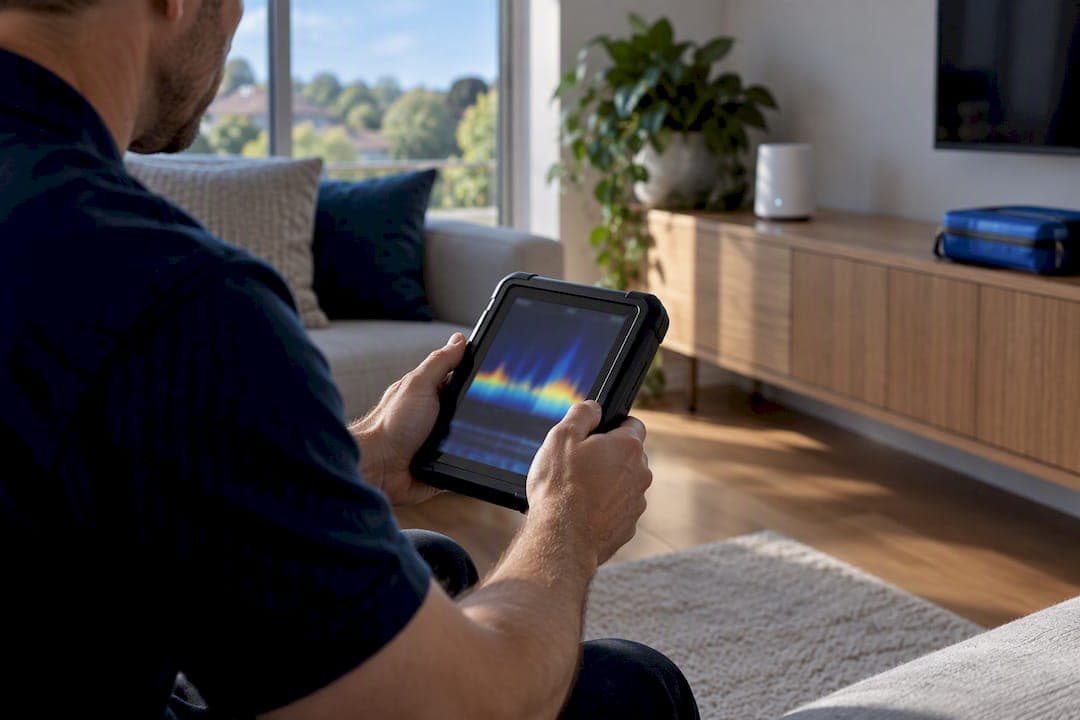
Wi-Fi channel interference comes from three sources: other networks on your same channel (co-channel), networks bleeding into your channel from next door (adjacent-channel), or devices that aren't Wi-Fi at all, like microwaves and Bluetooth speakers. The fastest useful move is a channel scan, followed by either picking a cleaner non-overlapping 2.4 GHz channel (1, 6, or 11) or shifting your busiest devices to 5 or 6 GHz. One warning worth knowing before you touch a single setting: a partially overlapping channel can sometimes cause more interference than a busy, fully shared channel.
TL;DR:
- Most interference occurs from adjacent-channel overlap rather than co-channel congestion, making partial overlap sometimes more harmful than full one.
- Running multiple scans during different times helps identify intermittent interference sources like household devices or neighboring networks.
- Switching to 5 or 6 GHz bands and narrowing channel widths generally improves stability, especially in dense environments, but DFS channels may cause unpredictable interruptions.
- Manual fine-tuning and proper site surveys are often necessary for complex setups, such as outdoor deployments or multi-AP networks, to effectively resolve persistent interference.
- Professional Wi-Fi site surveys provide definitive diagnosis and tailored installation solutions when DIY adjustments fail to solve interference issues.
Table of Contents
- What Is Wi-Fi Channel Interference, Exactly?
- How Do You Detect and Measure Channel Congestion?
- Step-by-Step: How to Fix Wi-Fi Interference
- Should You Use 5 GHz or 6 GHz to Avoid Interference?
- How Do You Confirm the Fix Actually Worked?
- When a Professional Site Survey Beats DIY Fixes
- Get a Professional Wi-Fi Diagnosis Instead of More Guesswork
- Sources
- FAQ
What Is Wi-Fi Channel Interference, Exactly?
Three distinct problems get lumped under the same complaint of "slow Wi-Fi," and they don't respond to the same fixes.
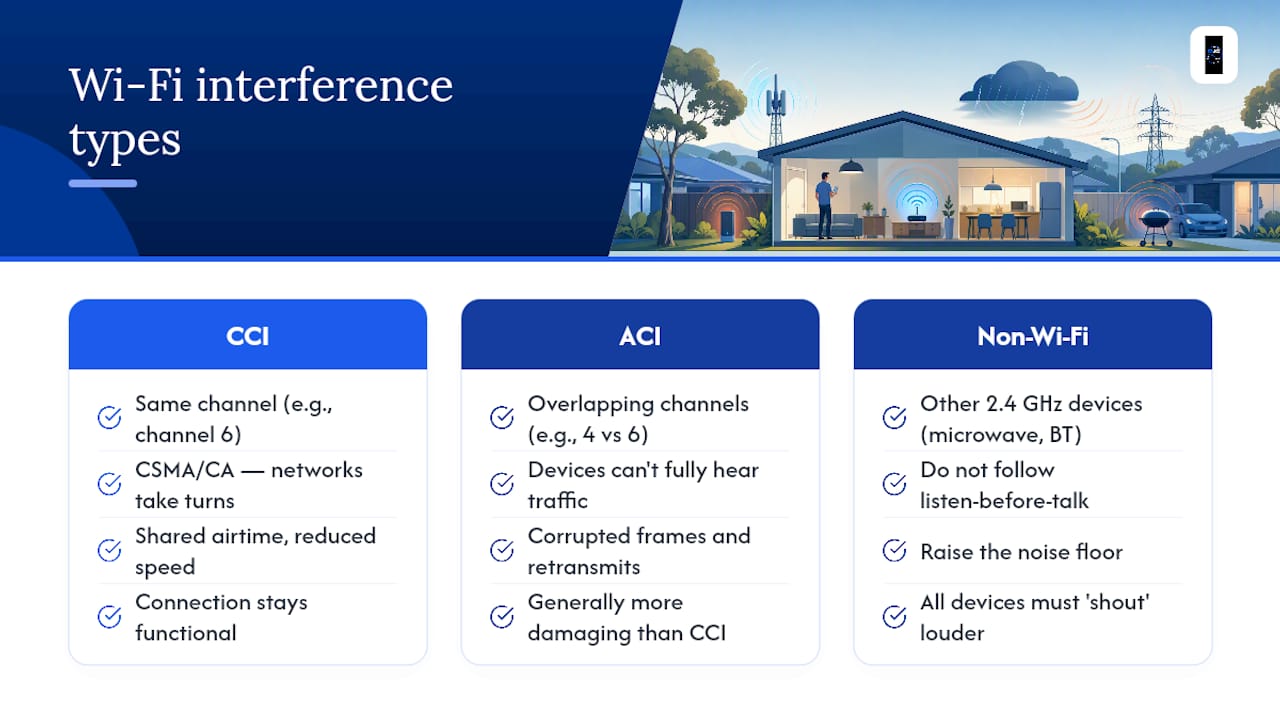
Co-channel interference (CCI) happens when your network and a neighbor's both sit on channel 6, for example. This sounds bad, but Wi-Fi has a built-in traffic cop for it. A protocol called CSMA/CA makes devices listen before transmitting, so co-channel networks take turns instead of colliding. You lose speed because you're sharing airtime, but the connection stays functional.
Adjacent-channel interference (ACI) is the nastier problem. This happens when networks sit on channels that partially overlap, say channel 4 bleeding into channel 6. Devices can't fully hear each other's traffic, so they don't politely wait their turn. The result is corrupted frames, retransmissions, and data loss rather than an orderly queue. According to NetAlly's breakdown of Wi-Fi channel behavior, ACI is generally more damaging than CCI for exactly this reason.
Non-Wi-Fi interference covers everything else sharing the 2.4 GHz band: microwave ovens, Bluetooth speakers, baby monitors, and some cordless phones. These devices don't follow Wi-Fi's listen-before-talk etiquette at all. They just raise the noise floor, and every device on that frequency has to shout louder to be heard.
How Do You Detect and Measure Channel Congestion?
You can't fix what you haven't measured, and a single scan tells you less than you think.
A Wi-Fi channel scan (built into router apps, or dedicated tools like NetSpot) shows you which channels other Wi-Fi networks occupy nearby. A spectrum analyzer goes further, detecting non-Wi-Fi energy that a channel scan can't see at all, like the burst a microwave puts out mid-cycle. If your problems only appear at certain hours, run the scan during those hours. A snapshot taken at 10 AM tells you nothing about the 7 PM crunch when every device in the building is streaming.
Run scans multiple times to capture intermittent interference, such as devices that cycle on and off, which may not appear in a single scan.
When you're reading results, focus on:
- Channel utilization: how much airtime is already claimed on a given channel.
- SIR/SINR: signal-to-interference ratio, which tells you how much your signal is being drowned out.
- RSSI: raw signal strength, useful but incomplete on its own.
- Retry rate and packet loss: the real symptoms of ACI and non-Wi-Fi noise.
- Latency: especially relevant for calls, gaming, and video conferencing.
Here's the counterintuitive part: a channel graph showing three networks stacked on channel 11 can be a better choice than an "empty-looking" channel 9, because channel 9 partially overlaps with both 6 and 11. Full channel overlap, surprisingly, tends to be less harmful than partial overlap.
Step-by-Step: How to Fix Wi-Fi Interference
Work through these in order. Most households solve the problem in the first three steps.
- Scan and document. Note which channels are busy, at what times, and on what band. Don't guess. Write it down.
- Set 2.4 GHz to 20 MHz width and pick channel 1, 6, or 11. These are the only three best non-overlapping options in that band. Choose the one with the least traffic in your scan. If you're forced to overlap, prefer full channel overlap rather than partial overlap when no clean channels are available (https://www.oscium.com/blog/wi-fi-tips-and-tricks-1-channels-1-6-and-11/).
- Move heavy-use devices to 5 GHz or 6 GHz. Streaming boxes, laptops, and gaming consoles all benefit. Enable band steering if your router supports it, so capable devices get nudged there automatically.
- Narrow your channel width in crowded environments. Wider channels (such as 40, 80, or 160 MHz) can increase peak speed primarily in less congested environments. In an apartment building or dense neighborhood, they just increase contention. Dropping back to 20 MHz on 2.4 GHz, and trimming 5 GHz width when things are dense, often produces steadier real-world performance.
- Lower your access points transmit power. High transmit power from access points creates larger coverage overlap zones and can lead to "sticky client" issues, where a device clings to a distant AP instead of roaming to a closer one. Match power roughly to what your clients can transmit back.
- Check your mesh backhaul. If you're on a mesh system, moving client devices to a new channel does nothing if the backhaul link between nodes is congested. Wired backhaul, run through structured cabling, sidesteps the issue entirely by taking that traffic off the air.
Pro Tip: Before you touch any settings, check your router or controller logs for radar or DFS events. Repeated automatic channel switching on 5 GHz can look like random interference when it's actually radar detection doing exactly what it's supposed to.
Should You Use 5 GHz or 6 GHz to Avoid Interference?
The 5 GHz and 6 GHz bands offer far more non-overlapping channels than 2.4 GHz, which is the main reason to push capable devices there. Fewer devices competing for the same frequency means fewer retransmissions and a cleaner noise floor overall.
The catch is DFS (Dynamic Frequency Selection). Many 5 GHz channels require radar detection, and if your AP senses radar, it must vacate that channel immediately. Some implementations can lock a channel out for around 30 minutes after a detection event. That's a rough interruption for a video call.
For 6 GHz, ACMA permits certain low-power indoor RLAN operation under LIPD class licensing, but class-licensed devices aren't protected from interference the way traditionally licensed spectrum is. Check your device's regional settings before assuming 6 GHz behaves the same way it might elsewhere. If you're running anything latency-sensitive, avoid DFS channels unless you've tested them and understand the risk.
How Do You Confirm the Fix Actually Worked?
Don't trust the signal bars. Run the same throughput, latency, and packet-loss test before and after your changes, at the same time of day the original problem showed up.
- Watch retry rate and channel utilization rather than RSSI alone. A strong signal number can still coexist with a high retry rate if ACI is still present.
- Rescan afterward and keep a short log of what you changed and when.
- If a change makes things worse, roll it back before stacking another change on top. Validating with application-level tests beats guessing every time.
If you've cycled through this process and interference persists, especially with confusing DFS behavior or a multi-access-point layout, it's a sign the problem is structural rather than a settings tweak.
When a Professional Site Survey Beats DIY Fixes
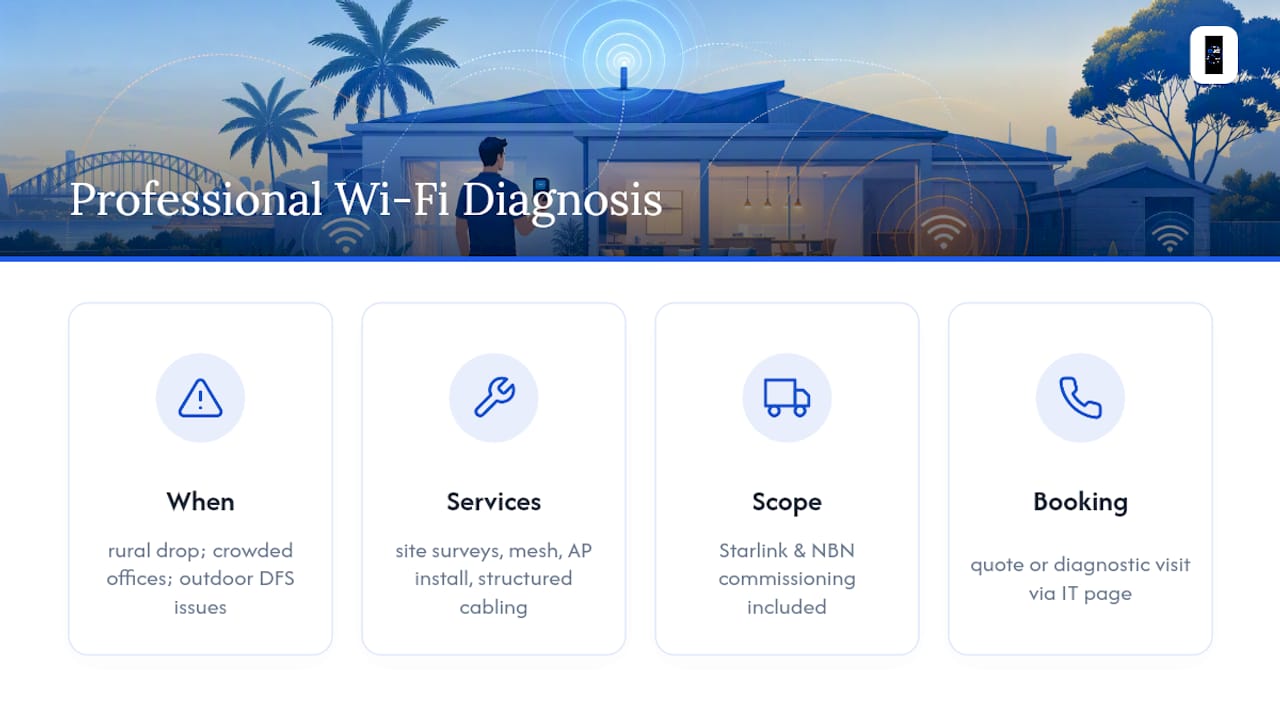
Some interference problems aren't solvable from a router app, no matter how carefully you scan. Rural long-range links, high-density office deployments, and outdoor DFS-sensitive setups all involve variables a consumer scanner can't fully map: terrain, multi-AP coordination, and regulatory channel behavior specific to the site.
That's the gap a proper Wi-Fi site survey fills. It replaces guesswork with actual measurement across every corner of a property, feeding into engineered AP placement, structured cabling for backhaul, and correctly commissioned Starlink or NBN links. Djcengineering's 15 Minute Test exists for exactly this reason: to turn "it feels slow" into real signal data before anyone touches a single setting.
— Dylan
Get a Professional Wi-Fi Diagnosis Instead of More Guesswork
An alternative to endless router tinkering is to use a professional team that surveys your property, diagnoses the actual interference source, and installs a fix designed around your specific site, without subcontractors passing the job around.

That matters most for the cases this guide can't fully solve from a phone app: rural properties fighting long-range signal drop, offices with too many access points stepping on each other, or outdoor setups where DFS keeps kicking a channel offline. Djcengineering's IT networking and Wi-Fi services cover site surveys, mesh design, wireless access point installation, and structured cabling that takes backhaul traffic off the air entirely. If your setup also needs Starlink or NBN commissioning done properly the first time, that's part of the same visit.
It is possible to request a quote or book a diagnostic visit through the IT networking page to receive a fix based on actual measurements of the property.
Sources
For deeper reading: ACMA's 6 GHz RLAN framework, Cisco's DFS/radar detection notes, and Ekahau's channel planning guide for width trade-offs.
- WiFi Channel Scanning: A Guide to WiFi Channels - NetAlly
- Why Use Wi‑Fi Channels 1, 6, or 11? - Oscium
- Radar detection in Dynamic Frequency Selection (DFS) - Cisco
- WiFi channel scanner: NetSpot
FAQ
Is 80 MHz or 160 MHz Better for Wi-Fi?
Neither is automatically better. Wider channels like 80 MHz or 160 MHz boost peak speed only in clean, uncongested spectrum. In apartments or dense neighborhoods, narrower 20 MHz channels tend to deliver steadier real-world performance because wide channels increase contention with neighboring networks.
Which Wi-Fi Channel Has the Least Interference?
There's no single answer since it depends on what your neighbors are using, but on 2.4 GHz, the three non-overlapping options are channels 1, 6, and 11. Run a scan and pick whichever of those three shows the lowest utilization at the time you actually use your network.
How Can I Tell if a Wi-Fi Channel Is Congested?
Run a channel scan during your peak usage hours and check channel utilization, retry rate, and packet loss rather than just signal strength. A Wi-Fi analyzer app or a dedicated scanner will show occupancy across nearby networks so you can compare channels directly.
How Do I Resolve Wi-Fi Interference?
Scan first to identify whether it's co-channel, adjacent-channel, or non-Wi-Fi noise, then set your 2.4 GHz band to 20 MHz on channel 1, 6, or 11, and move heavy-use devices to 5 or 6 GHz. If problems persist after retesting, especially in a larger property or complex layout, a professional site survey can pinpoint what a consumer scan misses.
Does Djcengineering Offer Wi-Fi Interference Diagnostics?
Yes, Djcengineering provides site surveys, mesh Wi-Fi design, and structured cabling installation aimed at resolving persistent interference and dead spots. Current pricing isn't published for these services, so quotes are provided through a site visit or consultation.