
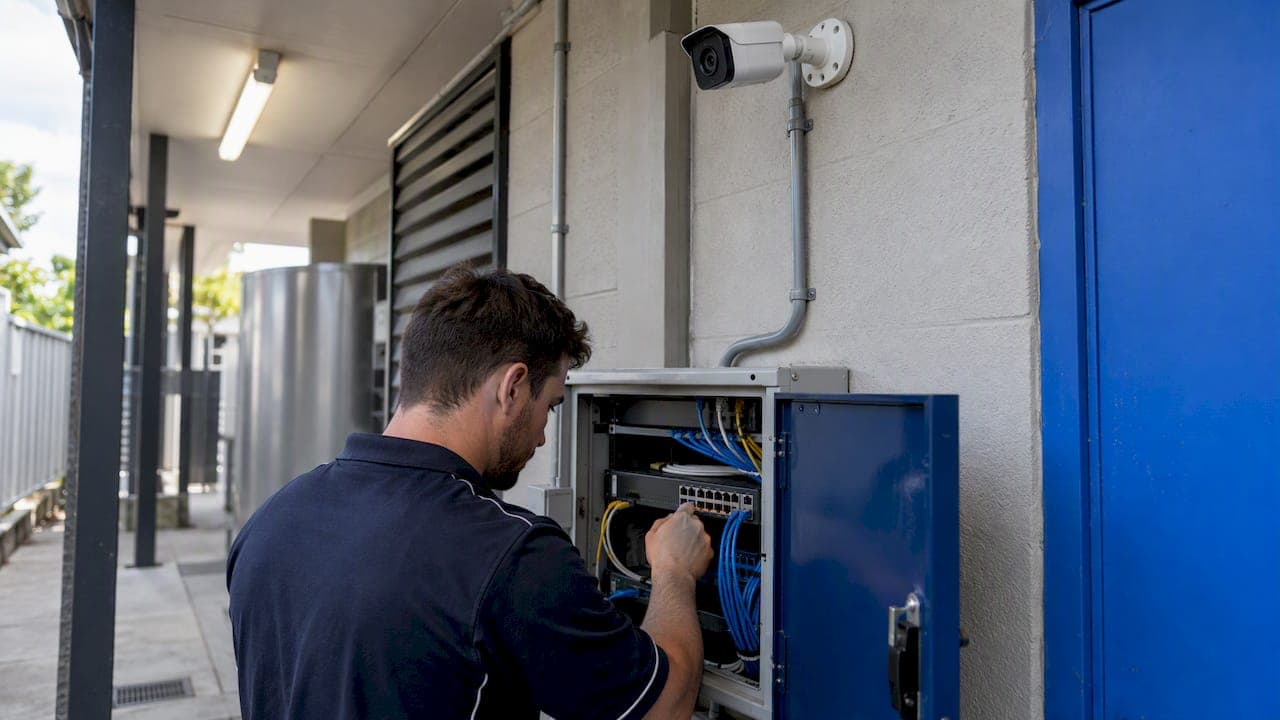
Putting your IP cameras on their own VLAN means they get a dedicated network segment, with a firewall deciding what they can talk to. Done properly, a compromised camera can't reach your laptops, servers or point-of-sale gear, and video traffic stops competing with everything else. You need a managed switch that supports VLAN tagging, a router or firewall that can route between VLANs, and a short list of firewall rules. This guide covers all three, plus the traps that make cameras vanish from the NVR.
TL;DR
- Give cameras and the NVR their own VLAN and subnet, with camera ports set as untagged access ports and links between switches set as tagged trunks.
- Use a default-deny firewall policy: cameras talk to the NVR, DHCP, DNS and a time source, and nothing else. Block internet access unless a documented feature needs it.
- Skip port forwarding for remote viewing. Use a VPN or a vendor-maintained relay instead.
- A VLAN is only as strong as the switch and firewall configuration behind it, so verify both together.
- NVRs with built-in PoE ports use their own internal camera subnet, which changes how you plan the VLAN.
Table of Contents
- Why cameras belong on their own VLAN
- What you need before you start
- Step-by-step: building the camera VLAN
- The firewall rules that do the real work
- Should cameras have internet access?
- When the NVR has its own PoE ports
- Troubleshooting: cameras that vanish or won't add
- Our perspective on camera networks
- Keeping the VLAN secure over time
- Get it built once, in South East Queensland
- FAQ
- Sources
Why cameras belong on their own VLAN
A camera is a small computer that runs firmware you rarely update, often with a web interface and a long list of services. It sits on a wall, often outdoors, where anyone can reach its cable. That makes it a poor neighbour for a network carrying your accounts, files and customer data.
The Australian Cyber Security Centre draws a useful line between two ideas. Segmentation partitions a network into smaller networks, while segregation enforces rules on which hosts and services may communicate. A VLAN gives you the first. The firewall rules give you the second. You want both.

The ACSC also advises enforcing strict access controls between network segments with a default-deny policy, which inhibits lateral movement by a malicious actor. In plain terms: if someone takes over a camera, they should find nothing to move to.
There is a performance side too. Zyxel's deployment guide notes that separating IP camera traffic from other devices can improve stability by shrinking the broadcast domain, and allows camera traffic to be prioritised with IEEE 802.1p. The same guide points out that sharing one VLAN can expose the network to spoofing attacks. A dozen 4K cameras streaming constantly are a steady load. Keeping them in their own lane protects your video as well as your office network.
What a camera VLAN does not do
A VLAN is not a magic wall. Netgate's documentation explains that a misconfigured trunk, native VLAN or default VLAN can defeat isolation, so switch membership and firewall policy have to be checked together. Treat the VLAN as the container and the firewall as the lock.
What you need before you start
The parts list is short.
- A managed switch with IEEE 802.1Q support. Unmanaged switches can't tag traffic, so they can't take part. This is the most common reason a home or small office can't do this without new hardware.
- A router or firewall that handles inter-VLAN routing and access rules. Many consumer routers can't. Business-grade gateways and firewalls can.
- PoE ports that match your cameras. Check the power class of each camera against the port budget. We cover this in our guide to matching IEEE PoE classes for Australian CCTV, because under-powered ports cause random reboots that look like network faults.
- Cabling you trust. A camera that drops packets because of a poor termination looks identical to a VLAN fault.
The requirement for tagging support and a VLAN-capable router or firewall is consistent across vendor guidance. For a worked example, TP-Link's Australian Omada documentation recommends a dedicated surveillance VLAN with its own gateway, subnet and DHCP range, using 192.168.20.1/24 as the example. Camera-facing switch ports are set as access ports with the surveillance VLAN as their PVID.
Step-by-step: building the camera VLAN
The order below keeps you from locking yourself out.
- Pick an ID and a subnet. Choose a VLAN ID that is not 1. Netgate recommends avoiding VLAN 1 in new designs. Use a subnet that doesn't overlap your main LAN, such as a /24 in its own 192.168.x.0 range.
- Create the VLAN interface on the router or firewall. Give it a gateway address and a DHCP range. Many installers reserve fixed addresses for each camera and the NVR so rules stay readable.
- Define the VLAN on every switch in the path. Logical separation only works when every switch between the camera and the NVR carries the VLAN correctly. Miss one and the camera goes quiet.
- Set camera ports as untagged. Zyxel's guide places cameras and the camera server on one VLAN, sets their ports to untagged, and sets the port PVID to the camera VLAN. The camera itself needs no VLAN knowledge.
- Set links between switches and to the router as tagged trunks. Only allow the VLANs you actually use on each trunk.
- Use DHCP or static addressing consistently. If cameras use DHCP, Omada's guide says to set surveillance devices to Dynamic IP (DHCP), and a DHCP reservation keeps addresses stable.
- Apply firewall rules last. Get the cameras recording first, then lock the policy down and test again.
Plug a laptop into a camera port before you finish. It should receive an address in the camera subnet and fail to reach your main LAN. If it can reach the main LAN, stop and check the rules and the trunk settings.
The firewall rules that do the real work
Here is a practical policy for a camera VLAN, expressed as a table you can adapt to your own addressing.
| Order | Source | Destination | Action | Why |
|---|---|---|---|---|
| 1 | Cameras | DHCP, DNS and a local time source | Allow | Cameras need an address, name resolution and correct timestamps |
| 2 | NVR | Cameras (management and stream ports) | Allow | The NVR pulls and records video |
| 3 | Admin workstation | NVR (and cameras if needed) | Allow | One named device for configuration |
| 4 | Cameras | Other private networks | Deny | Stops lateral movement |
| 5 | Cameras | Internet | Deny | Unless a documented feature needs it |
Two details matter here. First, put specific permits above broad denies, because most firewalls read rules from the top. Second, limit management to one administrative workstation instead of the whole trusted network. A phone or a laptop belonging to a casual guest should never be able to open a camera's admin page.
The ISM adds a point worth remembering: devices that manage VLANs should be administered from the most trusted security domain. Don't manage your switch from a shared or guest machine.
Should cameras have internet access?
For most sites, no. Cameras with no route to the internet can't phone home, can't be reached from outside and can't download unknown firmware. ONVIF's cybersecurity guidance takes the same line: avoid exposing cameras and NVRs to the internet, keep only required ports open, and use encrypted connections.
Some features do need outbound access, such as cloud push notifications on certain brands. Allow those deliberately, for the one device that needs them, and write down why.
Viewing your cameras from your phone
Remote viewing is what tempts people into port forwarding. Don't. Port forwarding puts a camera or NVR login page on the open internet where it is scanned within hours. Better options, in order of preference:
- A VPN back into your network, then view the NVR as if you were home.
- A vendor-maintained relay or controlled gateway, where the NVR makes an outbound connection and no inbound port is opened.
- Viewing through the NVR rather than each camera, so only one device carries the exposure and the cameras stay hidden.
This matches Australian retail guidance that remote access should favour controlled gateways, vendor relays or VPNs over exposed web interfaces. Keep the NVR itself up to date, since it is now the only door.
When the NVR has its own PoE ports
Many small systems use an NVR with built-in PoE ports, and these behave differently. With some Omada and VIGI recorders, enabling Network Isolation puts the PoE ports and the LAN port on separate subnets. Cameras plugged directly into the NVR sit on an internal subnet, not on your surveillance VLAN.
What that means in practice:
- Cameras on the NVR's PoE ports are already isolated from your LAN by the recorder. You don't tag them.
- The NVR's LAN port is what joins your camera VLAN, so only the recorder is exposed to the network.
- Any camera that is not on the NVR's ports, such as a remote gate camera on a switch, sits on the VLAN as normal and is added by IP address.
This is a tidy design for a home or a small shop, because only one device needs firewall rules. Check your model's manual for how its internal interface is addressed, since the details differ between brands.
Troubleshooting: cameras that vanish or won't add
Most failures come from a short list.
The camera is online but the NVR can't find it. Discovery tools usually rely on multicast, and multicast does not cross VLAN boundaries. Add cameras by their IP address and port instead, or run discovery from a device on the camera VLAN. Don't open the firewall wider to fix it.
A camera gets no address. Check that its switch port is untagged in the camera VLAN and that DHCP is serving that VLAN. A port left as a tagged member while the camera sends untagged frames is a classic cause.
Video drops under load. Look for a trunk missing the VLAN or a switch in the path that doesn't carry it. Spanning-tree misconfiguration can also push topology changes into other VLANs. If a camera reboots at random, the cause is often power rather than networking, so check the PoE class and budget first.
The NVR sees video but you can't open the camera page. That is probably your rule set working. Allow your admin workstation, not the whole LAN.

A quick method: check the switch's MAC address table to confirm which VLAN the camera's frames land in. If the MAC shows up in the wrong VLAN, the port settings are wrong.
Our perspective on camera networks
We see the same pattern on a lot of jobs: cameras added over several years, plugged into whatever switch was nearest, sharing a network with the office printer, the tills and the owner's laptop. Nothing is broken until something is.
Our view is that a camera network should be designed, not accumulated. We scope the cabling, the switching, the VLANs and the firewall as one system, and the same licensed team installs and configures all of it. There are no subcontractors in the middle, so when a camera doesn't show up on the recorder, nobody points at someone else.
That is also why we care about the boring parts: pro-grade cabling, managed switches, a properly built comms rack, PoE budgets that match the cameras. A VLAN on a flaky switch is still a flaky network. Get the foundation right and the security rules have something solid to sit on.
Dylan
Keeping the VLAN secure over time
The set-up is a one-off. The upkeep is what keeps it safe.
- Update firmware on cameras, the NVR and the switches. ONVIF's guidance includes regular updates to appliance software and firmware, disabling unused services and using HTTPS where possible.
- Change every default password and give each device its own.
- Disable what you don't use, such as UPnP, unused protocols and unused switch ports.
- Review the rules once a year or whenever you add a camera, so temporary exceptions don't become permanent.
- Consider port security. Authenticating ports with 802.1X, or at least shutting down unused ports, stops someone unplugging an outdoor camera and plugging in their own device.
There is a limit to know about for sensitive environments. The Australian Government's Information Security Manual says VLANs are not used to separate traffic between different security domains. That guidance is aimed at government systems, but the principle carries over: the ACSC notes segmentation should apply from the data link layer to the application layer, with physical isolation where environments are particularly sensitive. For a home or a typical small business, a well-built VLAN is a sound choice. For a site holding regulated or highly sensitive data, or a very large camera count, a physically separate camera network can be the better design, and that is a conversation to have at the scoping stage.
Recording is a separate issue from networking. Retention, signage and audio all carry obligations, which we cover in making CCTV standards work on Australian sites and our piece on CCTV privacy laws in Australia. If you are still deciding on the cameras themselves, start with where to mount every camera, because cable runs and switch locations follow from placement.
Get it built once, in South East Queensland
If you'd rather not spend a weekend on trunk ports and rule order, we design, install and commission camera networks for homes, businesses and rural properties across South East Queensland. Our NYX security camera systems and Ajax alarms are installed alongside the data cabling, managed switches, PoE and comms rack work they depend on, by the same accredited team from survey to handover.

We quote a fixed scope, so you know what the VLAN, switching and camera install includes before work starts. If you are building out a shop or office, our small business security checklist shows what a complete quote should cover. To start, get in touch through our site.
FAQ
Do I need a separate VLAN for home security cameras?
It is not mandatory, but it is good practice, and it costs little if you already own a managed switch and a VLAN-capable router. It keeps a compromised camera away from your personal devices and keeps video traffic off the main network. If your equipment can't do VLANs, a recorder with built-in PoE ports gives you a similar level of isolation for the cameras plugged into it.
Can I use a guest Wi-Fi network instead of a VLAN?
A guest network is a simple form of isolation and is better than putting cameras on your main network. A dedicated camera VLAN is better because you control the rules: the NVR can reach the cameras, and nothing else can. Wired PoE cameras are also more reliable than Wi-Fi ones, which matters for continuous recording.
Why can't my NVR find cameras on the VLAN?
Automatic discovery uses multicast, which doesn't cross VLAN boundaries. Add each camera manually by IP address and port, or run the discovery tool from a computer connected to the camera VLAN. If that fails, check that the camera port is untagged in the right VLAN and that your firewall allows the NVR to reach the camera.
Should the camera VLAN be blocked from the internet?
In most cases yes. Cameras rarely need internet access, and blocking it removes a major exposure. Allow outbound access only where a specific feature requires it, and use a VPN or vendor relay for remote viewing rather than port forwarding.
Is a VLAN enough to secure my cameras?
No. A VLAN is the first layer. You also need firewall rules, strong unique passwords, updated firmware, and trunk and native VLAN settings that have been checked. Together they make the isolation hold up.
Sources
- Implementing Network Segmentation and Segregation (ACSC, October 2021)
- Mitigations for network defence (ACSC, October 2025)
- Information security manual: Guidelines for networking (September 2026)
- A Guide to Simple IP Camera Deployment Using ZyXEL VLAN
- How to Configure a Surveillance Network Using Omada (Australia)
- VLANs and Security, pfSense Documentation
- ONVIF Recommendations for Cybersecurity Best Practices for IP-Based Physical Security Products
- CCTV Cybersecurity Guide Australia
- Isolate Security Cameras on a VLAN